
The SEALCOIN Platform lets you securely connect your wallet, manage devices, create fleets, and participate in pools to earn rewards. Everything runs on the Hedera network and uses WISeID for secure login.
This blog explains how to use SEALCOIN in easy steps.
- Before you start
- WISeID account and a verified email
- Hedera wallet application (recommended: Kabila) and a Hedera mainnet account
- Hedera mainnet account associated with QAIT token (ID: 0.0.10039182, view on hashscan)
- Hedera mainnet account funded with HBAR for fees and QAIT for operations
- A device prepared with the SEALCOIN Agent if you plan device onboarding
- Create WISeID account: https://account.wiseid.com/signup
- Kabila Wallet: https://www.kabila.app/wallet
- Create/import Hedera account: https://academy.kabila.app/products/wallet/account-creation-import
- Associate token: https://academy.kabila.app/products/wallet/token-transfers#token-association
- Hedera explorer: https://hashscan.io/mainnet/token/0.0.10039182
- Back up your seed phrase offline – never share it
- Verify the platform URL before signing any request
The SEALCOIN Platform is using WISeID for authentication. If you don’t have an account, please follow the steps at https://account.wiseid.com/signup.
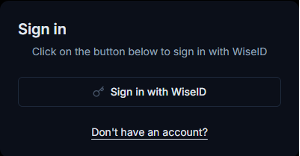
- Open https://platform.sealcoin.ai
- Click on “Sign in with WISeID”
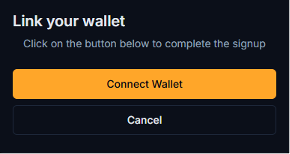
- Click on “Connect Wallet”
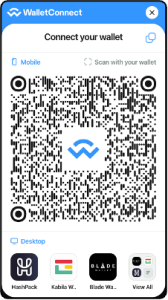
- Using your wallet application (Kabila):
- Scan the QRcode
- Approve the connection
- Select your wallet
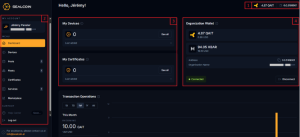
- Wallet badge
Shows basic Hedera account details throughout the app. - Left sidebar
- My account: Displays your account details.
- Menu: Lets you navigate across the application.
- Log out: Disconnects your wallet and closes your session.
- Devices and certificates summary
Dashboard cards summarizing what you own and manage.
- Wallet information
Dashboard card showing detailed Hedera account information.
Wallet connection is required to perform certain operations, such as registering a device and participate into Pools.
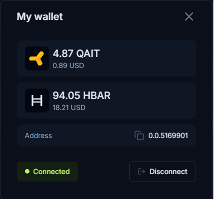
Your wallet information can be found either in the wallet badge at the top right of your screen or in the dashboard.
The wallet status (Connected/Disconnected) is visible in the dashboard.
Your Hedera account ID is displayed in the wallet badge only if it is connected, but always visible in the dashboard.
After your first sign-in, your wallet should already be connected: you should see your Hedera account ID in the wallet badge at the top right. After subsequent logins you’ll need to connect it again.
If not connected, you can connect your wallet by clicking on “Connect Wallet”, and then, using your wallet application (Kabila):
- Scan the QR code
- Approve the connection
- Select your wallet
If connected, you can disconnect your wallet by clicking on the Hedera account ID and then “Disconnect”.
A fleet is a set of transacting devices sharing the same device type and service type. Although you can create a fleet during device registration process, it is possible to create fleet beforehand directly in the “Fleets” page.
- Navigate to the “Fleets” page using the left sidebar
- Click on “Add new fleet”
- Fill in all fleet-related information
- Click on “Next”
- Provide the initial HBAR and QAIT amounts allocated to the new fleet
- Click on “Create”
- In your wallet application (Kabila), approve the 3 signature requests to:
- Create a new Hedera account for the fleet, topped up with the specified HBAR amount
- Associate the QAIT token to this new account
- Transfer the specified QAIT amount to this new account
SEALCOIN is designed to enable device-to-device transactions. In the SEALCOIN world, a device is any object able to interact with others to sell or purchase data, energy, or any other kind of service. This functionality is leveraged by the SEALCOIN agent, software installed and run on the device. For more information on this topic, please contact the SEALCOIN team at info@sealcoin.ai.
Install and launch the SEALCOIN Agent.
- Navigate to the “Devices” page using the left sidebar
- Click on “Add new device”
- Fill in all device related information
- Click on “Next”
- Click on “Buy certificate” to authenticate your device and allow it to transact
- In your wallet application (Kabila), approve the signature request to add the device key to the fleet wallet, so the device can transact using the fleet’s wallet you control.
The SEALCOIN platform offers active participation into the ecosystem, thanks to its Proof of Security (PoSy) framework involving pools. A pool is a set of transacting devices. Pool fees generated by enrolled devices are periodically distributed pro-rata to token holders contributing to the pools.
- Navigate to the “Pools” page using the left side bar
- Click on the pool you want to participate to
- Enter an amount, click on “Participate”, and click on “Confirm”
- In your wallet application (Kabila), approve the 2 signature requests to:
- Grant the contract an allowance to access your funds
- Execute the contract call for locking your assets
- Uncheck “Auto-lock”
- In your wallet application, approve the signature request to execute the contract call for unlocking
- Wait until your assets are withdrawable and, in the “Withdraw” tab, click on “Withdraw”
- In your wallet application (Kabila), approve the signature request to execute the contract call for withdrawal
Logging out disconnects your wallet and closes your session.
- Click on “Log out” at the bottom of the left sidebar
- Click on “Log out” in the confirmation popup
- 401/403 after login: Re-authenticate with WISeID, then try again; clear session/cache if needed.
- Wallet not detected: update wallet app; retry WalletConnect; verify Hedera mainnet.
- Missing signature prompts: open Kabila; check pending requests; verify connectivity.
- Device onboarding failed: check connectivity and health of the SEALCOIN agent.
- Transaction failed: verify HBAR and QAIT balances.
For assistance, please contact us at info@sealcoin.ai